If you are working with a large document in MS Word such as a Policy Manual or a Report, you will likely have used heading styles to format headings in the document. In this case you can use the Navigation Pane to quickly move around in the document
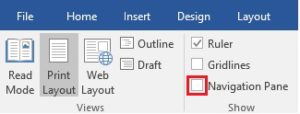
First, display the Navigation Pane:
- On the View tab in the Show group, select the Navigation Pane check box
- If necessary, select Headings at the top left of the Navigation Pane
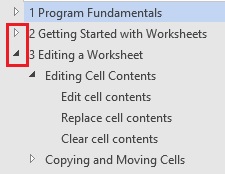
Click on a heading in the Navigation Pane to quickly jump to that part of the document. If a heading has subheadings, click on the small triangle next to it to hide or show the subheadings.
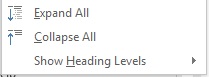
Right-click on a heading in the Navigation Pane and select Expand All to show all headings or Collapse All to only show Heading 1 headings.