In a large Excel worksheet with many rows and columns, when you scroll down or across the column and row headings disappear and it can be difficult knowing what the data you are looking at applies to. The Freeze Panes command lets you lock row and column headings in place so they stay visible as you scroll.
To lock rows and columns in place, you’d expect to select the rows or columns you want to freeze and then use the command. In fact, somewhat counter-intuitively, when you Freeze Panes the rows above and columns to the left of the active cell are locked in place.
To lock headings in place:
- Click on the cell below and to the right of the rows and columns you want to lock in place
- On the View tab, in the Window group, click on the Freeze Panes button
- Select Freeze Panes
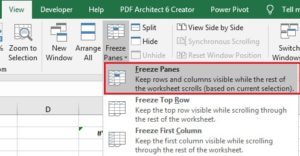
The Freeze Panes command changes to Unfreeze Panes when after you apply Freeze Panes.
If things don’t work out as you expect, remove the panes by using the Unfreeze Panes command: click on the Freeze Panes button then select Unfreeze Panes.