When you paste text into a Word document you have options for how the text is formatted.
The choices are:
- Keep Source Formatting – preserves the look of the original text
- Merge Formatting – preserve the look of the original text when styles are different
- Keep Text Only – change the formatting to match the look of surrounding text
As I am sure you will have discovered, you can access these options by clicking on the Paste Options button that appears to the bottom right of the text you have pasted. I generally only use Keep Source Formatting or Keep Text Only.
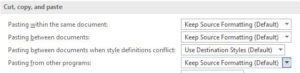
What you may not have discovered is that you can specify the default paste option for a number of situations. For instance, the default option is Keep Source Formatting and yet if I am pasting a mailing address from a website into a document I always use Keep Text Only so the text takes on the formatting of the surrounding text in the Word document. Rather then choosing Keep Text Only each time I paste text from a website into a document I’ve set the Pasting from other programs option to Keep Text Only.
You can specify the formatting option you want for four scenarios:
- Pasting within the same document
- Pasting between documents
- Pasting between documents when style definitions conflict
- Pasting from other programs
To set the default paste options:
- On the File tab, select Options
- In the Options dialog box, select Advanced in the navigation pane on the left
- In the Cut, Copy and Paste section, change options as needed
- Click on OK
Unfortunately Excel and Outlook don’t seem to have this feature.