I recently had someone email me with a question about one of the Weekly Tips. Helpfully, they included a screenshot so I could see what they were talking about. I noticed the edge of the image on their montior was missing so they likely used the Snipping Tool to grab the screenshot.
If you want to insert a screenshot in an email or an MS Office file, there’s a better way.
In Word, Outlook, Excel and PowerPoint you can insert a screenshot directly into your document:
- On the Insert tab in the Illustrations group, click on the Screenshot button
- In the Available Windows window, select the window you want to insert
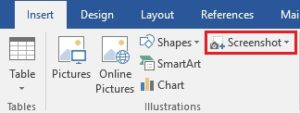
That’s it!
If you don’t want to include the full window, insert it and then use the Crop tool on the Picture Tools tab to hide the portion you don’t want. Alternatively, use the Screen Clipping button at the bottom of the Available Windows window. This opens the Snipping Tool so you can select which part of the visible windows you want to include in your file.