File Explorer (or Windows Explorer as it used to be called) has a handy feature that makes it easy to select most of the files in a folder.
Let’s say you have 40 files in a folder and you want to select 35 of them. You have a couple of ways to approach this:
- Use the Invert Selection feature
- Use Ctrl+A
In both cases, open File Manager and navigate to the folder where the files are.
To use Invert Selection:
- Use the checkboxes next to the file names to select the five files you do not want
- On the Home tab in the Select group click on the Invert Selection button
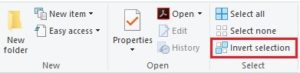
The 35 files you want will be selected. If you do not see a checkbox next to a file name when you move your mouse over it, you see can how to turn them on here.
To use Ctrl+A:
- Press Ctrl+A to select all the files in the folder
- Press and hold the Ctrl key
Click on the files you do not want and they will be removed from the selection.