Continuing our look at Outlook’s Search feature, I often find myself adding criteria to the search box to whittle down the number of emails the search locates. I find the email I want and move on. Then a while later I want to find the same email again.
Outlook keeps track of the last 10 searches you did. So in a case like this, rather than recreating the search criteria, use the Recent Searches option:
- Click in the search box (or Ctrl+E)
- Click on the Recent Searches button
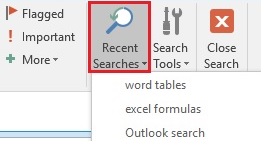
- Choose the search you want
Outlook applies the criteria in the search you selected. Recent searches are newest at the top, oldest at the bottom.