In my experience, most organizations are still storing files on network drives rather than in the Cloud. In recent versions of Word, Excel and PowerPoint, Microsoft has made the Cloud much more prominent when opening and saving files. So, when you want to open or save a file there are several clicks needed to get past the Cloud options and into the dialog box.
If you are not storing files in the Cloud you can disable the options so it takes fewer clicks to open or save a file.
To disable Cloud options when opening or saving a file:
- File tab, Options
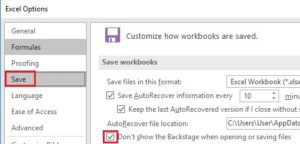
- In the Options dialog box, select Save in the navigation pane on the left
- Select the checkbox for Don’t show the Backstage when opening or saving files
- Click on OK
This option will only be relevant if you have added the Open and Save As buttons to the Quick Access Toolbar or if you use keyboard shortcuts (Ctrl+O, F12) for these commands.
If you access Open and Save As from the File menu, you’ll see the Cloud options as before.