You might occasionally have data in Excel that you want to include in an email, PowerPoint presentation or Word document. When you paste the cells into the email, presentation or document they often look very different to the original cells in Excel.
So how do you get the pasted cells to look the same as they did in Excel? Copy them as a picture.
To copy cells as a picture:
- Select the cells you want to copy
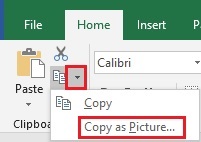
- On the Home tab in the Clipboard group, click on the drop-down arrow next to the Copy button
- Select Copy as Picture
- In the Copy Picture dialog box, Click on OK
You can then paste the picture anywhere you want.
As an alternative to Copy as Picture, copy and paste the cells as usual then click on the Paste Options icon to the bottom right of the pasted cells. Select Picture to paste the cells as a picture.
Two different ways to get to the same end point.